- Arrow keys to move
- Space to jump
- Double-tap Space to double jump
If you trip and fall, double jump to get back up.
Role: Developer
— 01
If you trip and fall, double jump to get back up.
— 02
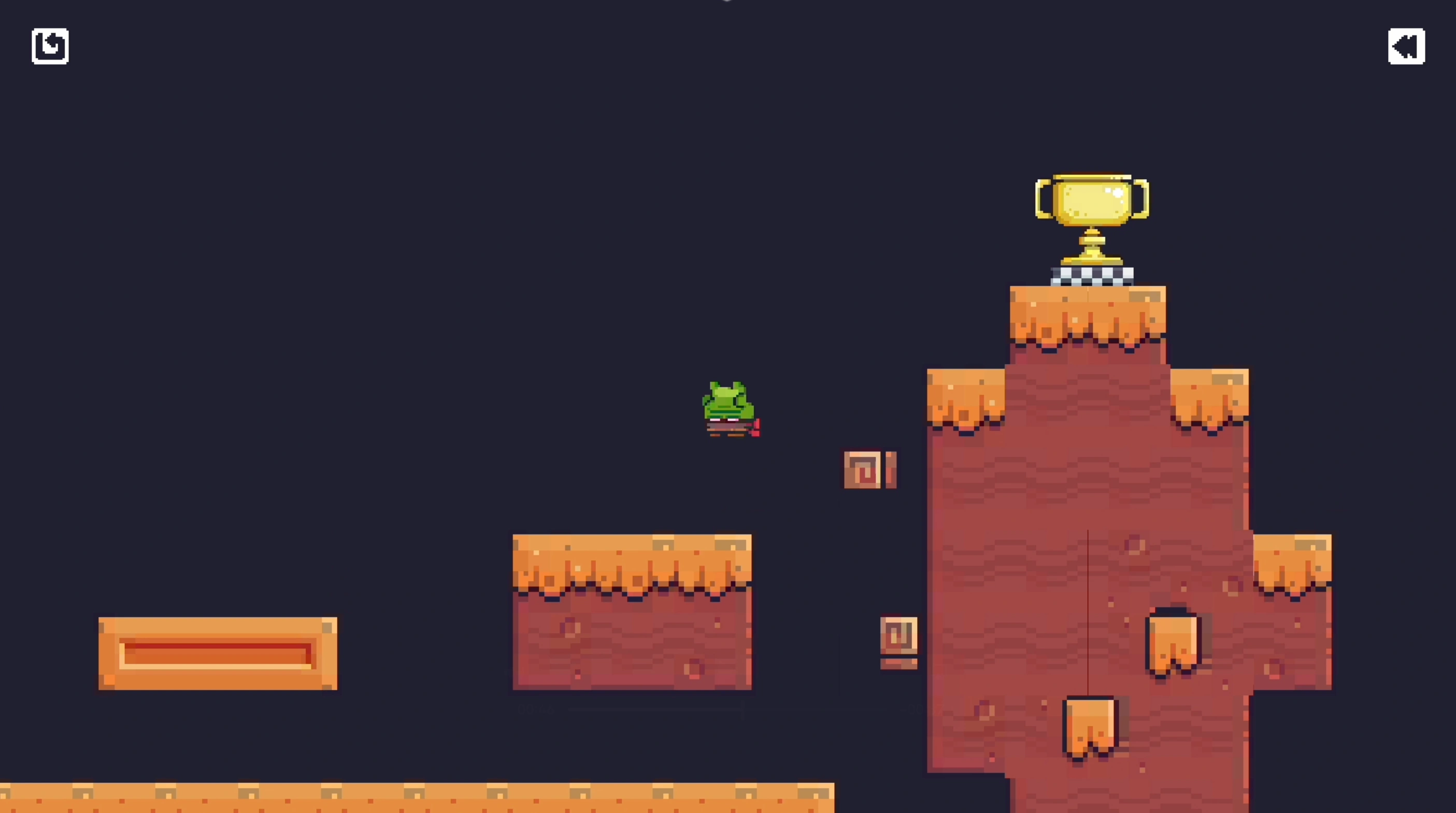
Stamble Jump is a 2D platformer built in Unity, featuring three levels and a central mechanic I designed around the idea of unstable movement: the trip-and-recovery system. When the player lands at an awkward angle and tips over, horizontal movement locks and the character stays down. The only way out is an intentional double jump, which straightens the player mid-air and restores control on landing.
— 03
Most platformers lock z-axis rotation on the player character, treating it as a source of friction that disrupts smooth, responsive movement. But by keeping that rotation free makes movement feel more physically grounded, and the instability it introduces carries real dramatic potential. Thus, I let the x-axis rotation stay active in the player's physics, so landing at speed on an edge causes the character to visibly tip. Rather than snapping back to upright automatically, I locked horizontal movement in this state — making the fall feel weighted and intentional. Recovery requires an explicit action: a double jump. The mid-air jump straightens the character's rotation, and full control returns once they land cleanly. This creates a clear cause-and-effect loop that rewards player awareness over reflexes.
— 04
Beyond the trip-and-recovery mechanic, I built several distinct interactive objects, each with its own trigger logic: A trampoline launches the player into the air when landed on from above, opening up terrain otherwise out of jump range. A moving platform activates only when the player is upright and stays on it briefly, then carries them horizontally without letting them slip. A temporary power-up increases the player's size and speed on contact, and a checkpoint object triggers the game's win state and end-of-level animation. Camera-follow keeps the player centered in frame throughout, and a full reset system lets players restart either the current level or the entire game from the welcome screen.